A Deep Dive into Power BI's New User-Defined Functions
For years, Power BI developers and DAX enthusiasts have shared a common challenge. We build powerful, complex measures, but as our reports grow, we inevitably find ourselves copying, pasting, and slightly modifying the same chunks of DAX logic across our model.
Whether it's a custom currency conversion, a complex date calculation, or a multi-tiered customer segmentation rule, this repetition has always been a source of inefficiency and a major risk to maintainability. Change a business rule, and you'd have to hunt down every instance of that logic and update it, hoping you didn't miss one. That is, until now.
Microsoft has introduced one of the most exciting updates to DAX in recent memory: User-Defined Functions (UDFs). This new preview feature is a true game-changer, promising to revolutionize how we write, manage, and scale our Power BI data models.
This article will be a deep dive into DAX UDFs. I'll cover what they are, how to enable them, how to write your first function, and why this fundamentally changes the game for professional Power BI development.
What are DAX User-Defined Functions?
In simple terms, a DAX UDF allows you to define a reusable calculation, package it as a function, and then call it from any other DAX expression in your model - be it a measure, a calculated column, or even another UDF. Think of it as creating your own custom DAX function, just like the built-in SUM, CALCULATE, or DATEADD.
How to Enable DAX UDFs (Preview)
As this is a new feature, it's currently in preview. You must enable it manually in Power BI Desktop.
Go to File > Options and settings > Options.
Navigate to the Preview features tab.
Check the box for "DAX user-defined functions".
Restart Power BI Desktop.
As a preview feature, its behavior could change, and it's generally advised to test it thoroughly before deploying it to mission-critical, enterprise-wide production reports.
Why This Is a Game-Changer
Using DAX UDFs fundamentally improves your development workflow.
Maintainability (The "Single Source of Truth"): This is the biggest win. Business logic is now centralized. Need to change how you classify a "VIP Customer" or calculate "Working Days"? You edit one function, and the change instantly propagates to every measure and calculated column that uses it.
Reusability: Write once, use everywhere. This dramatically speeds up development. Complex logic that once took time to write and debug is now a simple one-line function call.
Readability & Simplicity: Your core measures become clean and easy to understand. They describe what they are doing, not how they are doing it. The complex "how" is abstracted away inside the function, making your DAX model far easier for new team members to pick up.
Consistency: By forcing all calculations of a certain type to use the same function, you eliminate the risk of "logic drift," where two measures that should be a bit different end up being very different due to a copy-paste error.
How to Create Your First DAX UDF
Once you've enabled the feature, you'll need to use a new view in Power BI: the DAX query view.
In Power BI Desktop, click on the DAX query view icon on the left-hand pane
In the query editor at the top, you'll define your function using the FUNCTION keyword.
The syntax is:
Example: Simple Tax Calculation
Let's create a simple function for defining target status.
In the DAX query view, type:
A "code lens" will appear above your function definition. Click on "Update model with changes".
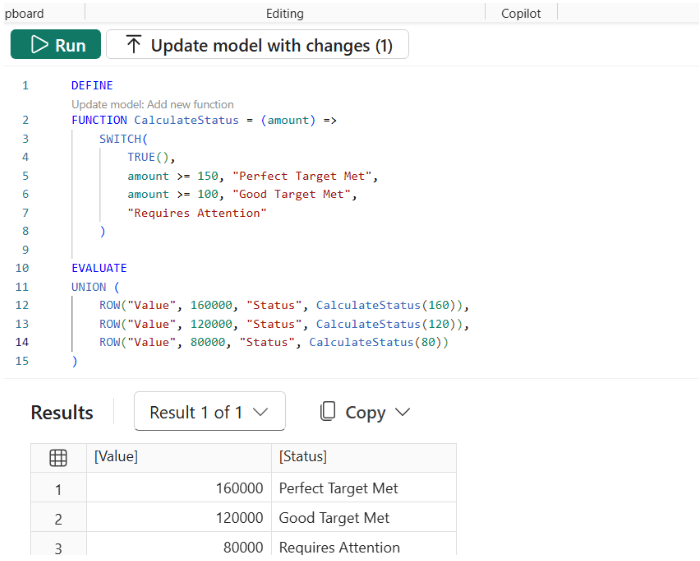
That's it! Your function is now part of your semantic model. Now you can reause it across your whole report.
How to Use Your New DAX UDF
Once the function is added to the model, you can use it just like any other DAX function.
Let's use our new CalculateStatus function. You can create a new measure in the "Report" view:
Power BI's IntelliSense will even find your function and show you the parameters it expects.
Important Considerations and Limitations
DAX UDFs are powerful, but they are not magic. It's crucial to understand a few key points:
Context: A UDF is a calculation helper. It does not modify the filter context. The expression inside the function is evaluated in the same context that the function was called from. You still need to use CALCULATE in your measures before you call the function if you need to manipulate the context.
Performance: Since the function is just a named DAX expression, performance should be similar to writing the DAX "long-hand" in the measure. However, as with any new feature, it's wise to performance-test complex functions.
DAX UDFs vs. Power Query Functions: This is a vital distinction.
Power Query (M) Functions: Run at data refresh time. They are for data preparation before the data is loaded into the model (e.g., cleaning text, transforming columns).
DAX UDFs: Run at query time. They are for calculations on the data already in your model and respond dynamically to user interactions (slicers, filters, etc.).
DAX User-Defined Functions are more than just a "nice-to-have" feature; they represent a fundamental shift toward more professional, scalable, and maintainable Power BI development.
By allowing us to abstract complex logic, centralize business rules, and eliminate repetitive code, Microsoft has given the entire Power BI community a powerful new tool. It will lead to cleaner models, faster development cycles, and far fewer errors.
While still in preview, now is the perfect time to start experimenting with DAX UDFs in your development environments. Identify your most-used, most-copied pieces of DAX logic, and start thinking about how you can refactor them into a clean, reusable function. The future of DAX is here, and it's functional.
Jakub Chyczewski
Business Intelligence Developer
Dec 1, 2025
Looking for a trusted partner for your next cloud project?
Reach out to us and tell how we can help
Featured

Cloudfide’s Business Intelligence Newsletter – SEPTEMBER 2026
Sebastian Jagniątkowski
Sep 14, 2026
Cloudfide’s Business Intelligence Newsletter – AUGUST 2026
Sebastian Jagniątkowski
Aug 10, 2026
Cloudfide’s Business Intelligence Newsletter – JULY 2026
Sebastian Jagniątkowski
Jun 26, 2026

Helpful Assistant, Not a Full Report Developer
Mateusz Malik
Jun 26, 2026