Calendar-Based Time Intelligence in Power BI
30 min
Wojciech Szynalski
Published Apr 28, 2026

Time-based analysis is at the heart of every BI project. Comparing year-over-year sales, computing month-to-date totals, tracking weekly trends - these are everyday tasks for any analyst. Power BI has long supported time intelligence in DAX, but the classic functions came with real limitations. In September 2025, Microsoft announced a Preview feature that changes the game: calendar-based time intelligence.
What Was Missing?
Traditional DAX time intelligence functions - TOTALYTD, SAMEPERIODLASTYEAR, PARALLELPERIOD - have three well-known pain points:
No built-in week-level calculations. There was no WTD equivalent.
A continuous date table was required, complicating non-standard structures.
Non-Gregorian calendars (fiscal, retail 445/454/544, 13-month, lunar) demanded complex workarounds.
Each of those challenges meant writing brittle, hard-to-maintain DAX. That is changing now.
What Are Calendars?
The new feature introduces the concept of calendars - definitions that tell Power BI which columns in a table represent specific time attributes: year, quarter, month, week, day. A single table can host multiple calendars, giving full control over how time is segmented. Key capabilities include:
Support for any calendar type: Gregorian, shifted Gregorian, retail (445, 454, 544), 13-month, lunar, and fully custom structures.
No structural rules imposed by Power BI - your calendar can be as non-standard as needed.
Sparse date tables supported; a continuous table is recommended but no longer required.
New week-based functions: TOTALWTD and DATESWTD make week-level analysis straightforward.
Potential performance gains over traditional time intelligence in certain scenarios.
What Are Calendars?
Enable the preview in Power BI Desktop: Options and settings → Options → Preview features → Enhanced DAX Time Intelligence.
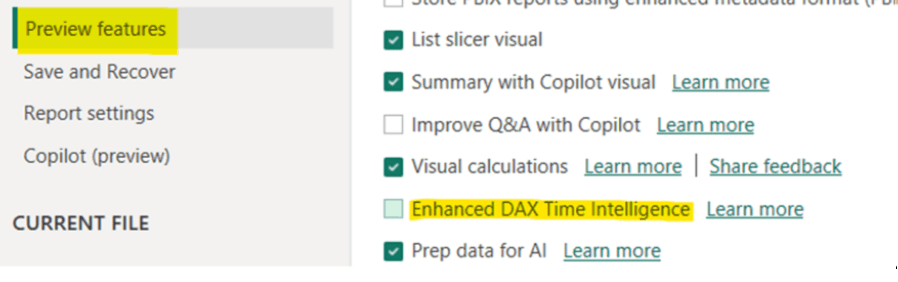
Figure 1 - Enable “Enhanced DAX Time Intelligence” in Preview features
Once enabled, access the Calendar Options via the Table tools ribbon. Select your date table (here: DimDate) and click Calendar options.
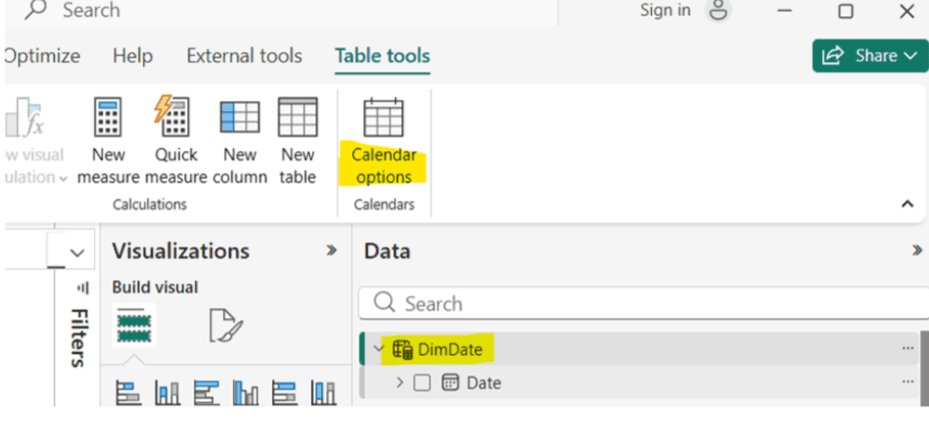
Figure 2 - The Calendar options button in the Table tools ribbon
This opens the Manage calendars dialog. On a fresh table, no calendars exist yet - click + New calendar to begin.
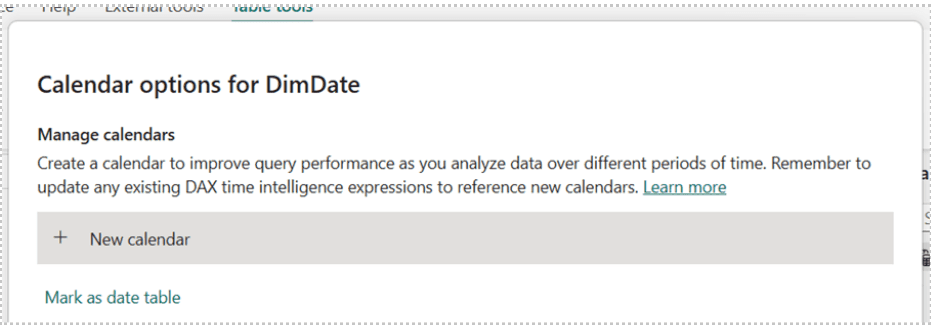
Figure 3 - Calendar options dialog for DimDate before any calendars are defined
Defining a Calendar
A calendar is a mapping of columns to predefined categories. Each category requires a primary column that uniquely identifies the time period. Two category types matter:
Complete - uniquely identifies a period, e.g. “January 2024” (Month + Year).
Partial - does not uniquely identify a period on its own, e.g. “January” (MonthOfYear). Must always be paired with a complete category.
For each DimDate table, two calendars are defined: one Gregorian and one Retail 4-4-5. The Gregorian Calendar maps standard ISO columns:
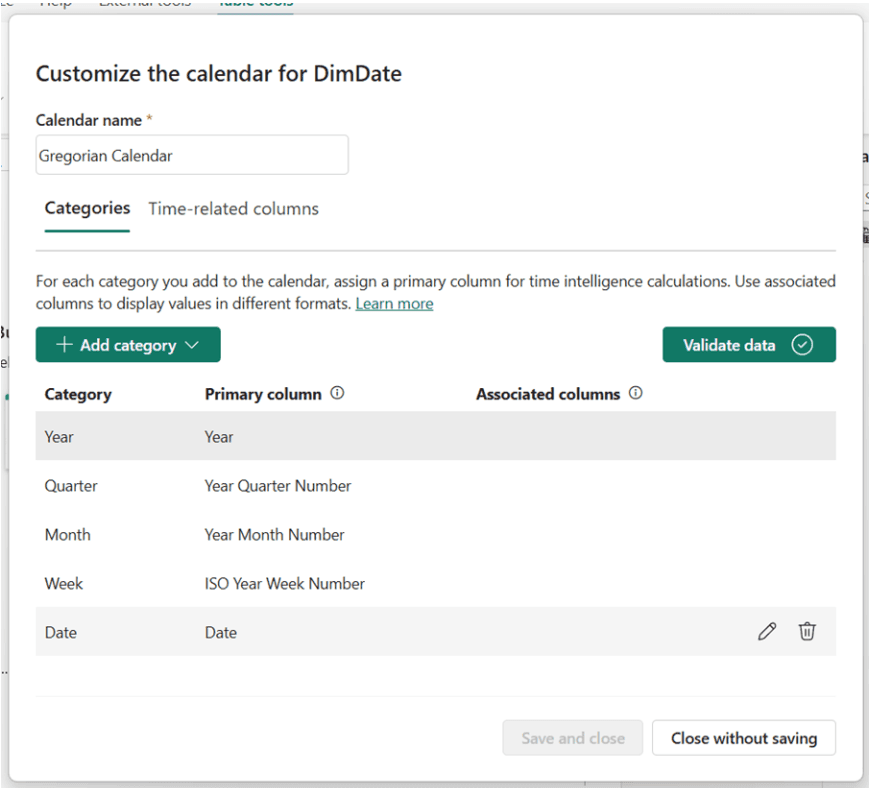
Figure 4 - Gregorian Calendar: Year, Quarter, Month, ISO Week, and Date categories mapped to DimDate columns
The Retail445 Calendar maps the same date column but uses retail-specific columns for year, quarter (period), and week:
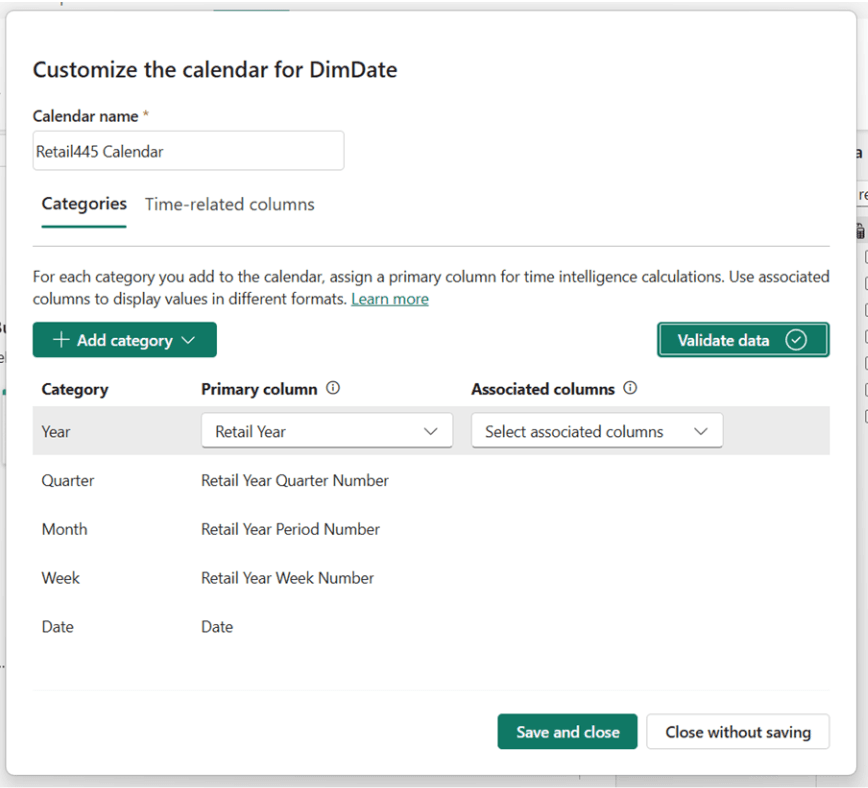
Figure 5 - Retail445 Calendar: same Date column, but Year maps to Retail Year, Week to Retail Year Week Number
After saving both, the Calendar options overview confirms both calendars coexist on the same DimDate table:
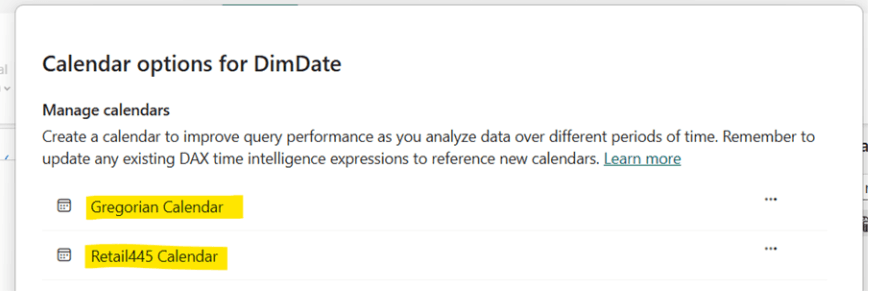
Figure 6 - Both Gregorian Calendar and Retail445 Calendar defined on DimDate
Always click Validate data after adding each category. Power BI checks whether the cardinality between levels is correct - for example, every week must belong to exactly one year. This is especially important for retail calendars where week-to-year assignment at year boundaries can be subtle.
Using Calendars in DAX
Once defined, you pass the calendar name instead of a date column into time intelligence functions. The syntax is clean and identical regardless of how complex the underlying calendar structure is:
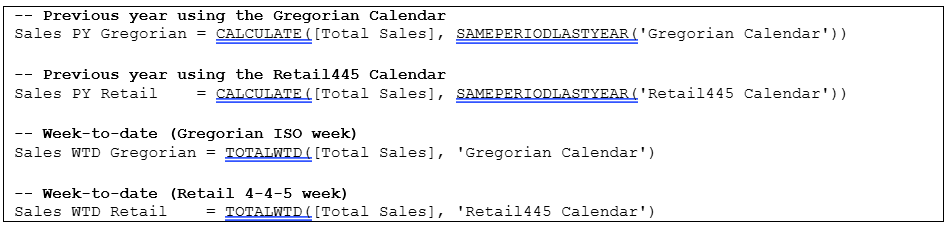
Where the Two Calendars Diverge
The real value of having two calendars becomes visible at year boundaries. The ISO week rule states that week 1 of a new year is the week containing the first Thursday. This means Monday 30 December 2024 already belongs to ISO week 2025-W01 - while in the Retail 4-4-5 calendar (anchored to 1 January 2024), that same day is still part of 2024-W52 because the retail year completes its 52nd week on 1 January 2025.
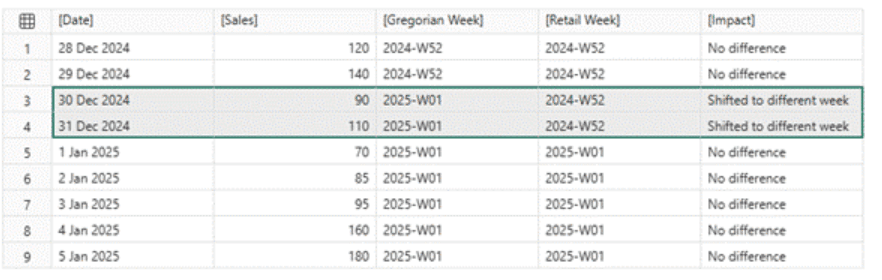
Figure 7 - 30 and 31 December 2024 fall in different weeks depending on which calendar is used. The Impact column highlights the divergence: “Shifted to different week”.
This is not just a labelling difference - it directly affects WTD accumulation. In the Gregorian calendar, WTD resets every Monday. In the Retail calendar, WTD resets on the first day of a new retail week (anchored to 1 January 2024). Because 30 December 2024 is Monday, the Gregorian WTD counter resets to 90 (that day’s sales only), while the Retail WTD counter continues accumulating from the previous days of the same retail week:
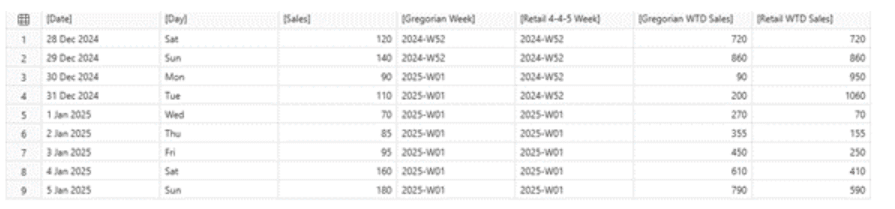
Figure 8 - Daily view: Gregorian WTD resets on Monday 30 Dec (row 3: 90), while Retail WTD carries forward the prior days of the same retail week (row 3: 950, row 4: 1060). The two columns first agree again on Wednesday 1 Jan 2025, when both calendars start a new week.
Important: if you slice this data by Gregorian columns (Year / Month / Day), both WTD measures look identical - because the filter context is the same for both. The divergence only appears when you use ISO Year Week as the row axis for the Gregorian calendar, and Retail Year Week for the Retail calendar. Each calendar must control its own row context.
Aggregated to the week level, the difference in totals becomes stark:
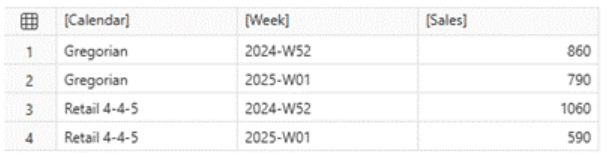
Figure 9 - Week-level summary: Retail 4-4-5 assigns 1,060 to 2024-W52 (9 days including 30-31 Dec) versus 860 for Gregorian (7 days Mon-Sun ending 29 Dec). The difference is material enough to affect any trend comparison.
Things to Know Before You Migrate
Still in Preview (since September 2025). Changes before GA are possible.
The date table is more important than ever. Every category level must satisfy a many-to-one relationship with the level above - validate frequently.
You may need more date tables. A single central table may no longer cover every scenario; separate tables for fiscal-week calendars are sometimes necessary.
Do not mix calendar perspectives on the same page. Comparing monthly and weekly totals side by side confuses consumers and makes numbers incomparable.
Time-related column tagging is TMDL-only for now; the Calendar Options UI does not yet expose it.
Summary
Calendar-based time intelligence removes three long-standing DAX frustrations: limited native support for week-based calculations, the dependence on a continuous date table, and the need for awkward workarounds for fiscal, retail, and other non-Gregorian calendars. But the biggest shift is not simply the addition of a few new functions. The real change is that time intelligence in Power BI is no longer tied to a single universal interpretation of time. Instead, it can follow the calendar logic the business actually uses.
As the examples above show, the same DimDate table can carry both a standard Gregorian calendar and a Retail 4-4-5 calendar, while the DAX itself remains remarkably simple. A single SAMEPERIODLASTYEAR or TOTALWTD call can now be evaluated against different calendar definitions, producing results that are not only easier to write and maintain, but often more accurate than hand-rolled workarounds that used to span dozens of lines. That is what makes this feature so compelling. It is not just about shortening a measure.
It is about allowing the semantic model to represent time in a way that better matches business reality. If you are starting a new project, this feature is worth adopting today. For existing solutions, test your specific scenarios - especially around year-end week boundaries - before migrating.
Wojciech Szynalski
Business Intelligence Developer
Apr 28, 2026
Looking for a trusted partner for your next cloud project?
Reach out to us and tell how we can help
Featured

Cloudfide’s Business Intelligence Newsletter – JULY 2026
Sebastian Jagniątkowski
Jun 26, 2026

Helpful Assistant, Not a Full Report Developer
Mateusz Malik
Jun 26, 2026
Cloudfide’s Business Intelligence Newsletter – JUNE 2026
Sebastian Jagniątkowski
Jun 10, 2026

Beyond the Chatbox: Copilot vs. AI Agents in Fabric & Power BI
Jakub Chyczewski
May 29, 2026