For years, "write-back" has been the holy grail of Power BI development. Until recently, if you wanted users to update a status, add a comment, or adjust a forecast directly within a report, you had to rely on complex Power Apps integrations or external third-party tools.
With the introduction of Translytical Task Flows in Microsoft Fabric, that barrier is finally disappearing. This feature merges "transactional" and "analytical" workloads, allowing users to not only see data but act on it instantly without leaving the Power BI interface.
What are Translytical Task Flows?
At its core, a Translytical Task Flow is a bridge between a Power BI visual (like a button) and a Fabric User Data Function.
When a user clicks a button in the report, it triggers a Python script (the UDF) hosted in Microsoft Fabric. This script can receive parameters from your report, such as a selected ID or a comment typed into a slicer and perform operations like updating a database.
How to implement Write-Back Flow
1.Create the SQL Database
For an optimal write-back flow, a Fabric SQL Database is the best choice. It provides the low-latency, row-level transaction speed required for a seamless user experience.
Create a new SQL Database in your Fabric workspace.
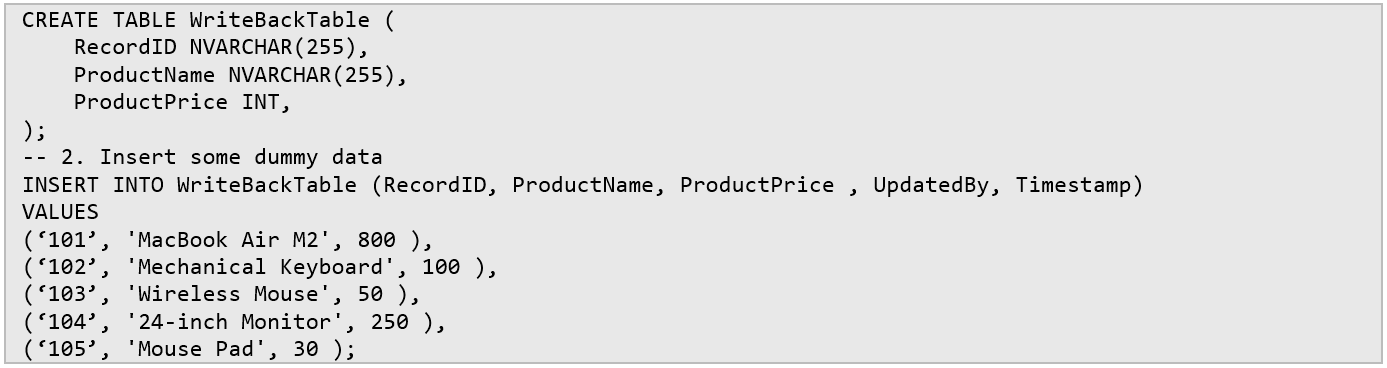
Create a target table (e.g.,
WriteBackTable) to store your data.
2.Create the User Data Function (UDF)
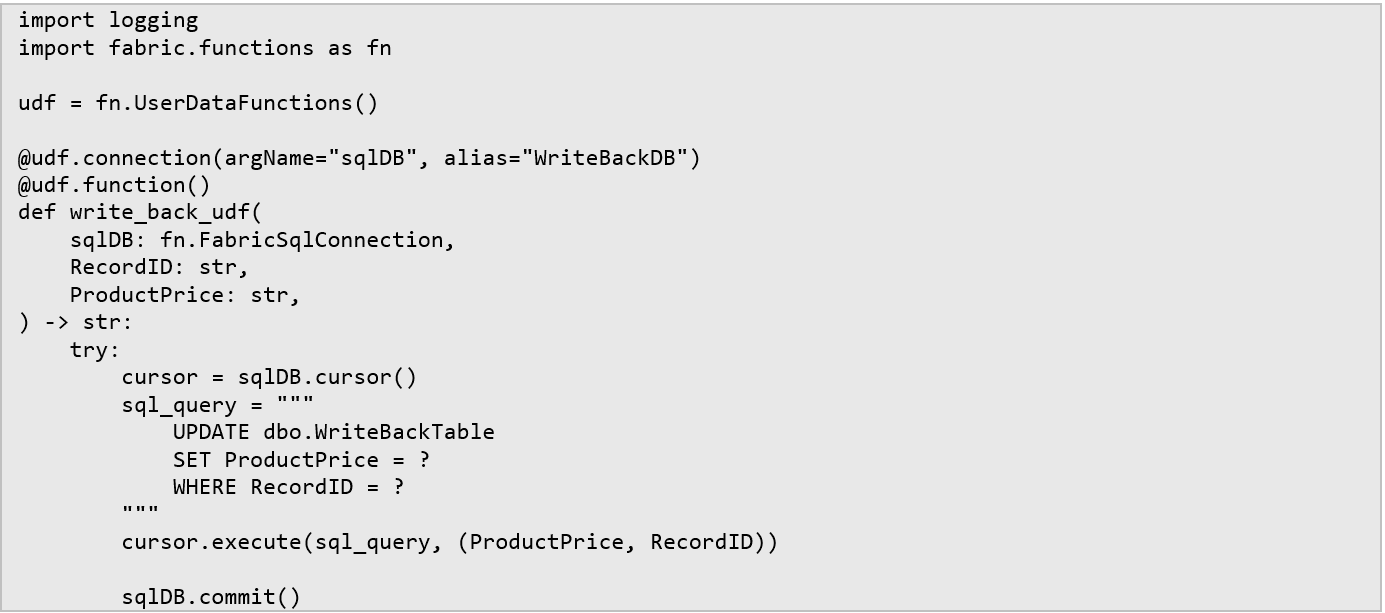
The UDF is the "brain" of the operation. It’s a Python-based function that executes your database commands.
In your workspace, select New Item > User Defined Function.
Under the Manage Connections tab, map your Fabric SQL Database. This allows the script to use
fabric_sql_connectionto executeUPDATEorINSERTqueries.In the editor, use the
@udf.functiondecorator to define your inputs (in this case,RecordIDandProductPrice).

3.Configure Power BI Report
Open Power BI Desktop. Ensure you are using the latest version, as this feature relies on specific preview toggles.
Connect to Data: Select OneLake Catalog > SQL Databases and choose your database. Select Connect to SQL Endpoint and use DirectQuery to ensure changes are reflected instantly in the report.
Build the UI:
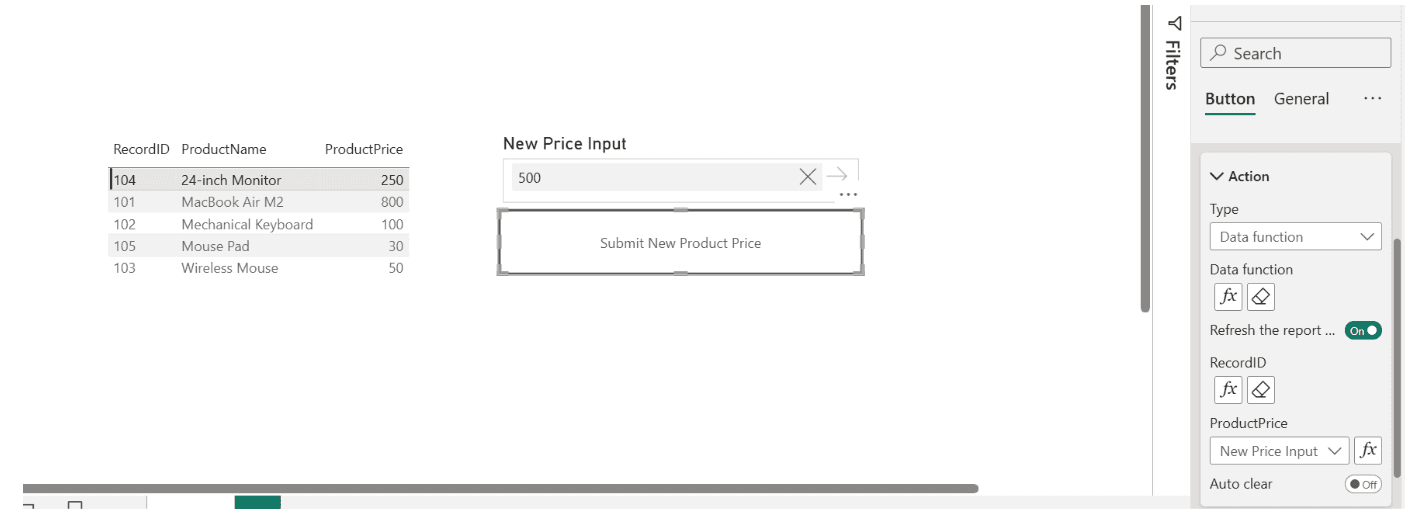
Create a Table Visual containing
RecordID,ProductName, andProductPrice.Add a Text Slicer and title it "New Price Input".
Add a Button which will serve as the trigger for your write-back action.
Configure the Action Button:
Go to the Format pane > Action.
Set the type to Data function and click the
fxicon to select your Fabric UDF.Map the Parameters: For
RecordID, click thefxbutton next to the input and bind it to theRecordIDcolumn. ForProductPrice, select the "New Price Input" value from the dropdown to link your slicer to the UDF parameter.
4.Test the write back
With the setup complete, you can now test the live loop:
Select a specific product row in your table visual.
Enter a new value in the text slicer.
Click the Submit button.
The price for the selected row will be updated instantly in both the Fabric SQL Database and the Power BI visual.
Current Limitations & Challenges
While Fabric UDFs provide a powerful way to handle write-back, the feature is currently in a preview state with several technical constraints that developers must consider:
Mandatory Parameters & Lack of Optional Inputs
The most significant hurdle is that all parameters defined in the UDF are mandatory. Currently, Power BI does not support "optional" arguments for Data Functions.
The "All or Nothing" Constraint: If your function is designed to update multiple columns (e.g., Price, Status, and Comment), the user must provide values for all of them before the button becomes active.
No Native Default Values
The Power BI button interface does not yet allow you to set a "Default Value" for a parameter.
To handle defaults (like a "0" or "N/A"), you must create a DAX measure to provide a fallback value before passing it into the function.Permission Requirements
Security is a critical factor when deploying this solution. Unlike some middleware-based write-back methods, the Fabric UDF approach requires the end-user to have specific permissions:
Users must have access to the Power BI Report, but they also need permissions to execute the UDF and write access to the underlying Fabric SQL Database.
This "double-layer" security ensures data integrity but requires careful management of workspace roles and database permissions during deployment.Limited Visual Compatibility
Currently, only a subset of visuals (such as the Button Slicer, New List Slicer, and Text Slicer) are natively recognized as input controls for Data Functions.
If you want to capture input from legacy visuals or complex charts, you must use a "middle-man" DAX measure) to capture the context and map that measure to the UDF parameter.
Summary
The introduction of Translytical Task Flows in Microsoft Fabric marks a significant shift in the Power BI ecosystem, finally turning the "read-only" reputation of dashboards into a two-way interactive experience.
While the current preview state brings certain challenges, such as mandatory parameters, specific permission requirements, and limited visual compatibility, the core value proposition is clear.
__________________
Ready to optimize your Power BI change management processes? Let our experts conduct a thorough assessment of your current reporting practices. We will define a strategy to streamline your reporting system, restore trust in data, and propel your business to the next level with data-driven decisions. Don’t let competitors overtake you - get in touch to schedule your consultation.
Jakub Chyczewski
Business Intelligence Developer
May 7, 2026
Looking for a trusted partner for your next cloud project?
Reach out to us and tell how we can help
Featured

Cloudfide’s Business Intelligence Newsletter – SEPTEMBER 2026
Sebastian Jagniątkowski
Sep 14, 2026
Cloudfide’s Business Intelligence Newsletter – AUGUST 2026
Sebastian Jagniątkowski
Aug 10, 2026
Cloudfide’s Business Intelligence Newsletter – JULY 2026
Sebastian Jagniątkowski
Jun 26, 2026

Helpful Assistant, Not a Full Report Developer
Mateusz Malik
Jun 26, 2026